How to use COUNTBLANK, COUNTIF & COUNTIFS in Excel
Learn COUNTBLANK, COUNTIF, and COUNTIFS in Excel with practical examples and tips with syntax details also.
COUNTBLANK Function
To determine how many empty cells there are in a range of cells, use the COUNTBLANK function, which is one of the statistics functions.
Syntax for COUNTBLANK
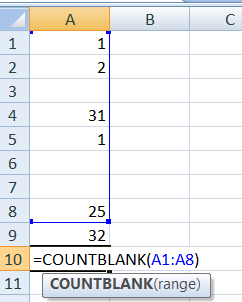
As seen in the image above, all we need to do is choose the range in which we wish to calculate the blank cells using the COUNTBLANK function [for example, COUNTBLANK(A1:A8)].
COUNTIF Function
The corresponding values are counted using the COUNTIF formula according to the given criteria.
Here, we explain how to utilize Excel's COUNTIF Formula.
Syntax for COUNTIF
=COUNTIF(range, criteria)
Range: Range of cells that apply criteria against
Criteria: Identify the particular value or cell.
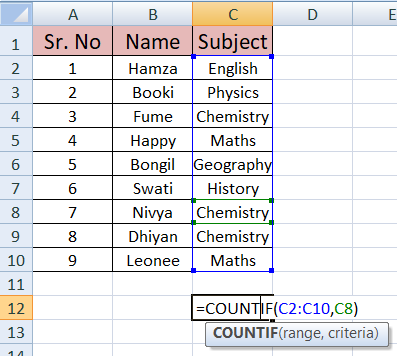
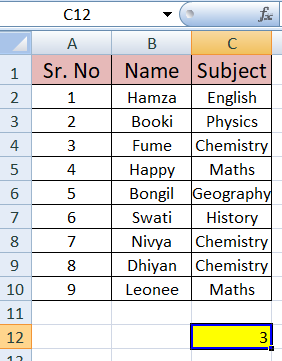
As you can see in the above image, our range is C2:C10, and our criteria is Chemistry. I chose C8, thus we receive a score of 3, as Chemistry appears three times in our chosen range.
As seen in the example below, you can also enter data that meets your criteria within the range you have chosen.
Note: One thing to remember is that, in order to manually write criteria rather than select, you must enter a value in "-".
Additionally, it is also work.
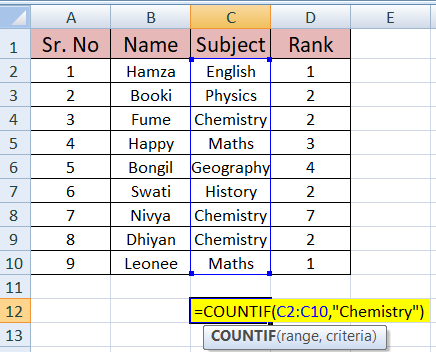
The example below is the same to the one above, but it addresses values that are numerical.
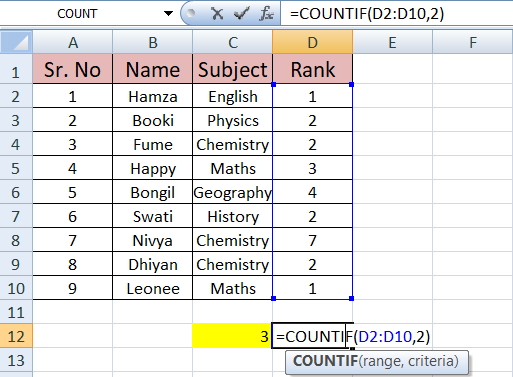
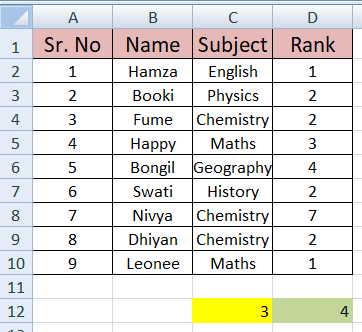
The COUNTIF function works in this way.
COUNTIFS Function
The COUNTIFS function counts the examples in which all criteria have been met by applying criteria to cells in various ranges.
Syntax for COUNTIFS
=COUNTIFS(criteria_range1, criteria 1,[criteria_range 2, criteria 2,..)
criteria_range1: The initial range to determine the related criteria.
Criteria 1: The criteria that specify which cells will be counted might be expressed as a text message, number, or cell reference.
optional criteria_range2, criteria2,... Other ranges and the conditions that go alongside them.
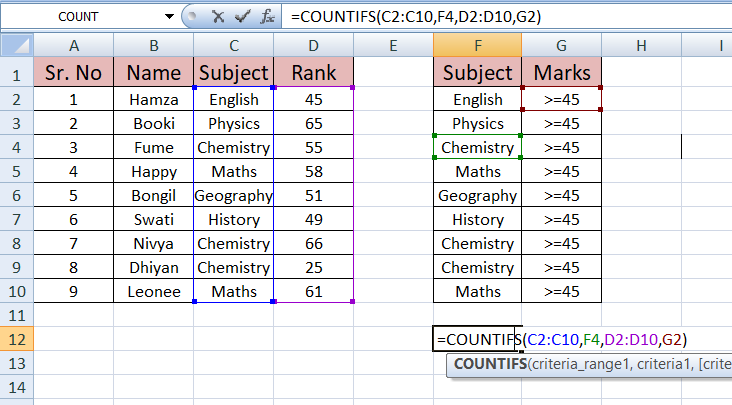
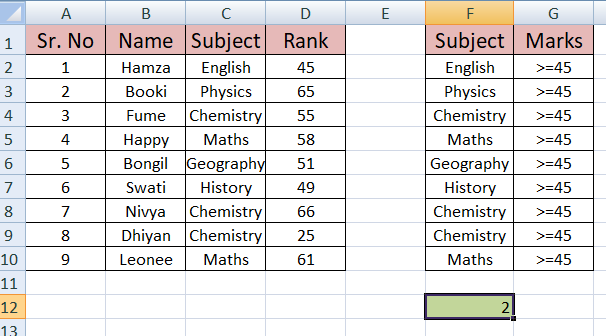
Here's an example where I want to figure out how many chemistry students receive more than or equal to 45 points.
I can easily calculate using the COUNTIFS formula. Since the subject column range is our first criteria range, we only need to choose it. Second, in order to get the results for the Chemistry subject, we must first choose Chemistry. Next, we must choose Range once more and provide the precise criteria, such as "I want 45 marks."
According to the data, response 2 shows that two students in chemistry receive grades of equals or up to 45.
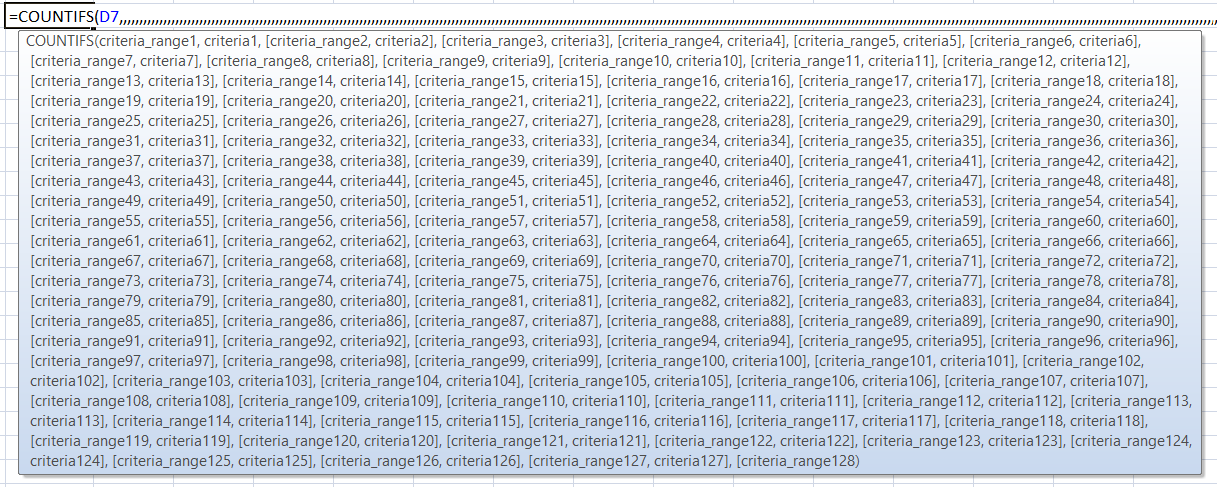
There can be a maximum of 128 range/criteria pairs.
Summary:
COUNT: Determines how many cells in a range have numbers in them.
COUNTA: Determines how many cells in a range are not empty.
COUNTBLANK: Determines how many cells are empty within a given range.
COUNTIF: Determines how many cells in a range meet the criteria provided.
COUNTIFS: Determines how many cells in a range satisfy the specified condition.
Checkout below link for more details:
COUNT: https://www.olivaa.net/blog/function-2/count-in-excel-step-by-step-with-real-examples-100
COUNTA: https://www.olivaa.net/blog/function-2/counta-function-tutorial-for-excel-users-99