COUNT function examples in Excel
Learn COUNT in Excel with a clear step-by-step guide. Formulas, examples, and tips to count numbers, blanks, and criteria easily
The COUNT feature in Excel provides a count of numerical values. Numbers include functions, dates, times, percentages, negative numbers, and formulas that yield numbers. It neglects text values and empty cells.
Count function cells can be used in three different ways.
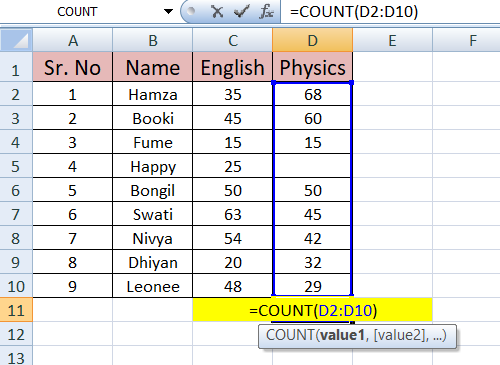
1.To begin, simply write =count (choose the cell you wish to use in this formula)
like, =COUNT(D2:D10).
example:
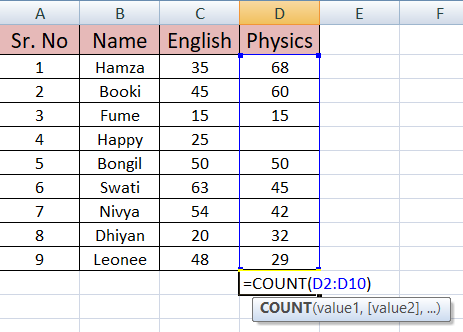
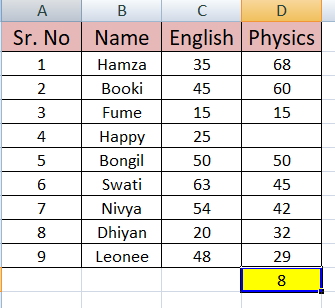
So, here you can see that the count function not consider blank cell. It only consider written numeric cells and give count as per cell contents.
(The image above contains nine cells in total, but the count function does not accept blank cells, hence the outcome is 8)
2. Directly you go through the function bar seen in below image.
here is the easy path that can easily follow given step by step.
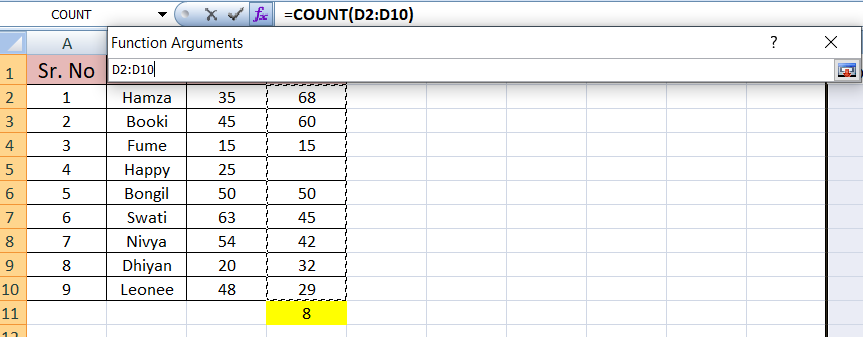
Double click on fx Bar >It show = sign>Select count function >click ok as show in below image.
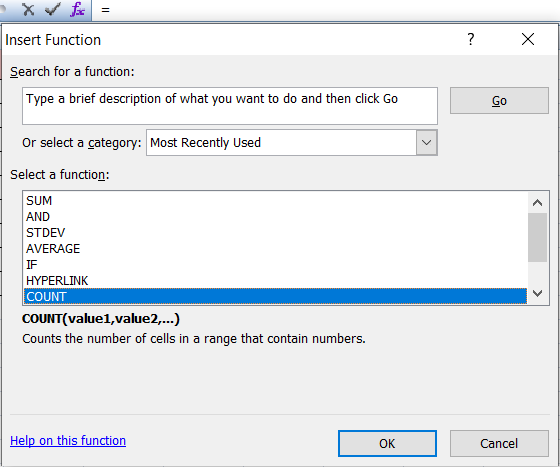
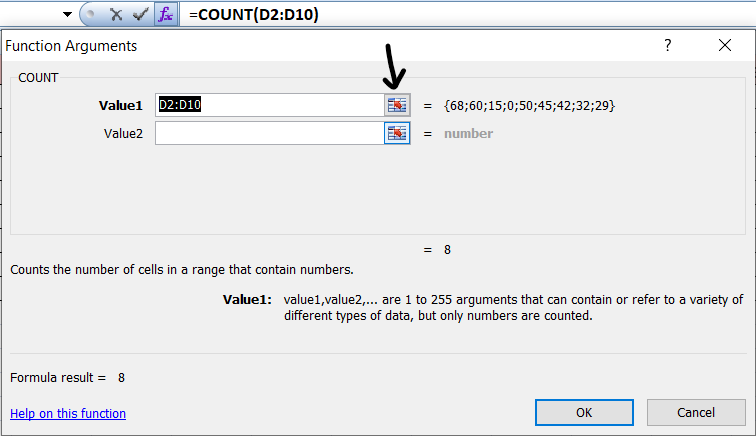
That opens new function Argument dialog box as per below image, here you can see one arrow clock on that icon it allows you to select the specific column for formula or you can directly write cell numbers like D2:D10 as shown in image below and click OK.
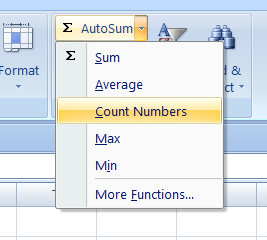
3. As seen in the image below, you can utilize the AutoSum function directly on the Excel ribbon.
After choosing counting the numbers select your desired column and , hit Enter.
There are three different ways to use Count function in excel.
Syntax for count Function
The COUNT function has the following syntax:
COUNT(value1, [value2],...)
The first item, cell reference, or range that you wish to count numbers within is copy value1.
In above all examples we use Value 1.
Additional items, cell references, or ranges that you wish to count numbers within can be identified by value2,...
Value 1 and value 2 both use for Counting Numbers in Non-Adjacent Ranges
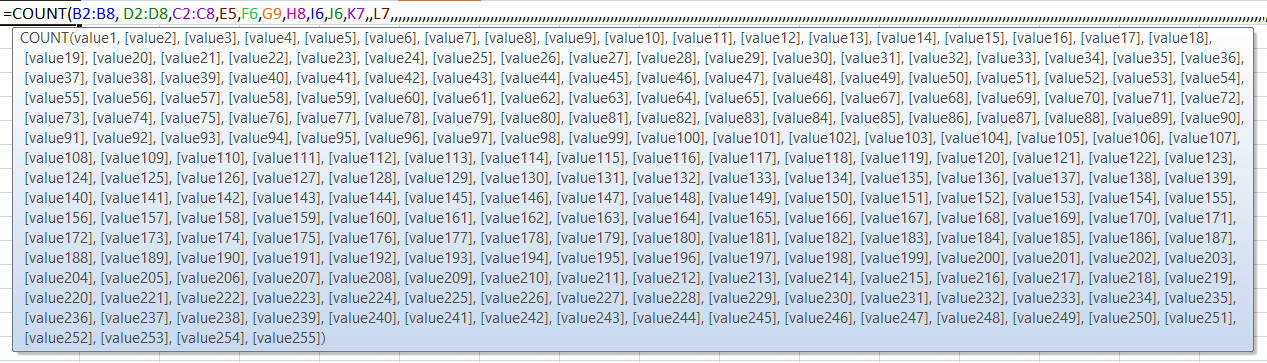
You can also count numbers in non-adjacent ranges.
For example, to count the numbers in the ranges B2 through B8 and D2 through D8 used, as per below image.
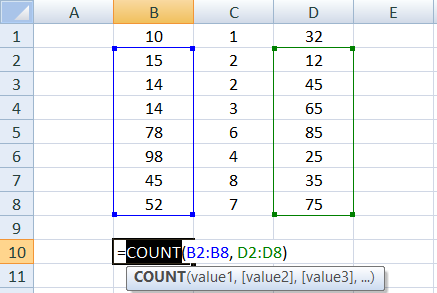
You can specify up to 255 of these optional arguments like value 1, value2, value3,... ETC.
Counting Numbers with Additional Values
You can include additional values directly in the formula,
example:
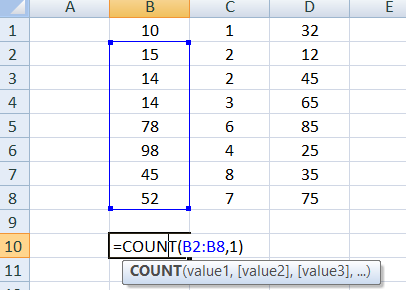
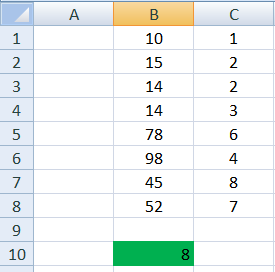
B2:B8 has seven numbers, as shown in the earlier photos, and we also put value directly in the calculation, so it takes eight.
Here's another way to use the count function.
Also refer below link for AutoSum feature of ribbon in excel.
https://olivaa.odoo.com/blog/ribbon-5/simplify-calculations-with-autosum-in-excel-94