Excel Hyperlink: 4 Step Tutorial
Learn how to create a hyperlink in Excel in 4 simple steps. Click, insert, customize, and link to anywhere.
Excel's link feature, especially the HYPERLINK function, enables users to build clickable links that lead to other locations, improving spreadsheet organization and interactivity.
Excel's link function can be used in four steps:
- Go to insert
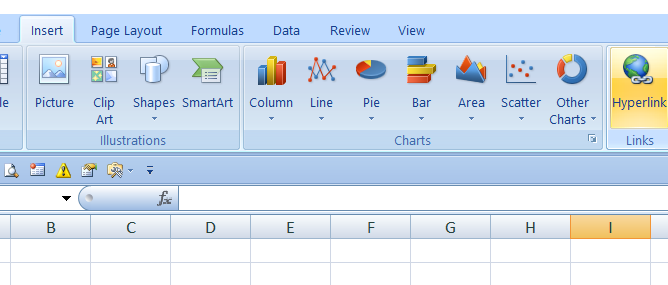
2. Click on Hyperlink in insert
Which displays the image dialog box below.
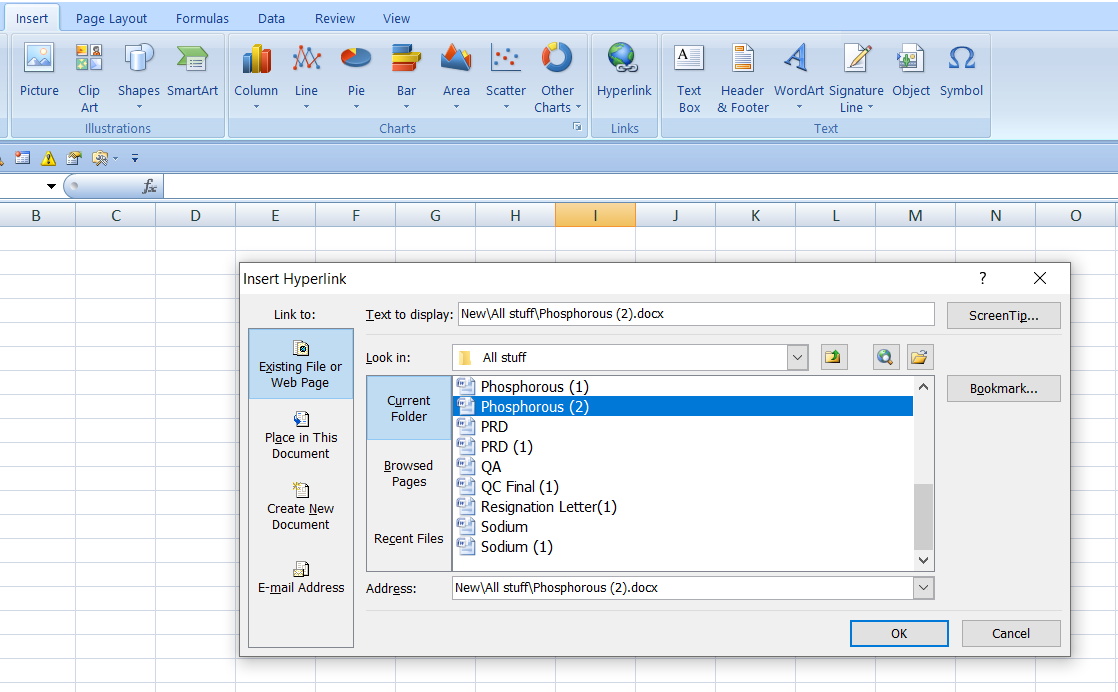
3. All you have to do is click on the file of your choice in the link box and enter its name as seen in the image below.
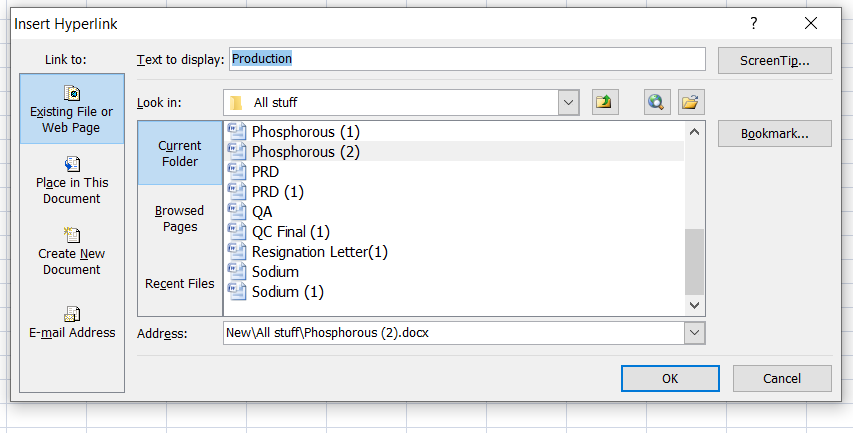
4. just click on "Ok"
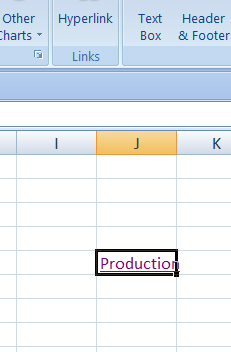
You may open easily by simply clicking this link display as in above image.
This is how to use Excel's link feature in four steps.
For this feature, you can also utilize the CTRL+K shortcut.
You can also see the attached links below for other shortcuts.
https://olivaa.odoo.com/blog/shortcut-8/excel-keyboard-shortcuts-for-formatting-2026-104
https://olivaa.odoo.com/blog/shortcut-8/microsoft-excel-shortcuts-for-faster-smarter-work-96
https://olivaa.odoo.com/blog/shortcut-8/10-excel-shortcuts-to-boost-productivity-fast-95