Quick Guide: The IF Function
IF is also called as logical function of excel.
Learn IF function essentials for Sheets: IF, AND/OR and real-world examples.
One of Excel's most often used functions, the IF function enables you to logically compare a value to your expectations.
You can utilize it in various ways in this blog post, ranging from simple beginner level to advanced level without any difficulties.
IF() Function:
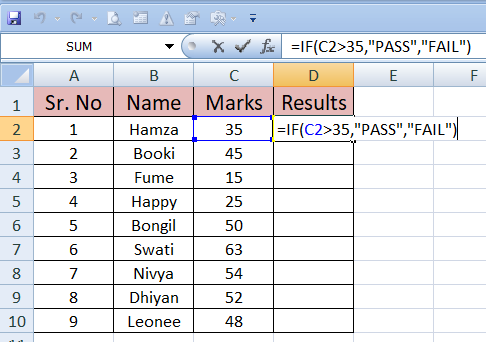
As you can see from the image above, we have listed some people's names along with the number of marks they have contributed.
Therefore, if someone receives more than 35 points, they pass; if they receive less than or equal to 35 points, they fail.
Since we're simply going to go to equals if, we've hit the top key in the cell, chosen the cell with content 35, written >35, "PASS," and "FAIL," closed the quote marks, and press enter.
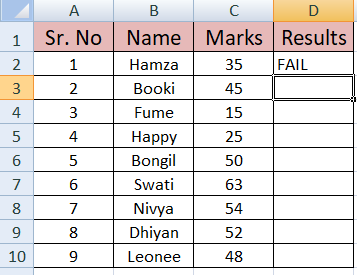
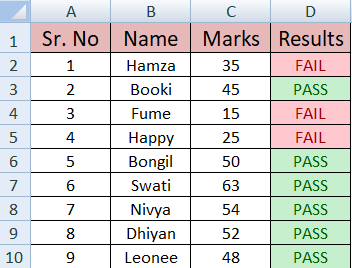
After pressing enter you can see result as per above image . And drag the cell that whoever got 35 and less then 35 got fail and above 35 marks content people pass data is ready.
You can view the result as shown in the below image after hitting enter. And drag the cell that says who received 35. If they received less than 35, they failed, and if they received more than 35 they pass, the data is ready.
IF(AND) Function:
By checking for a condition and returning a response if that condition is True or False, Excel's IF function enables you to logically compare a number with your requirements.
Let's have a look. As you can see in the image below, we have added a new column for the scores of the English and Physics subjects.
Basically, we want to use the formula as shown in the image below [e.g., =IF(AND(C2>20,D2>20),"PASS\FAIL")] by going to the end of the result column and pressing the equal key.
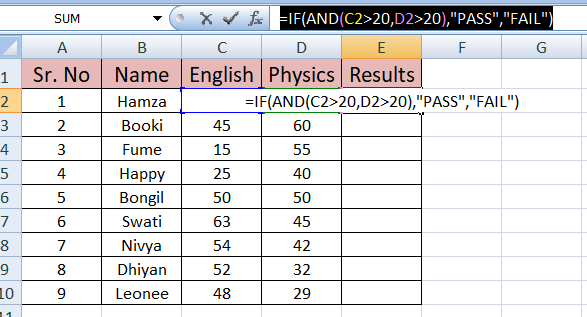
After that, simply press Enter and drag it down to view the results as shown in the image below.
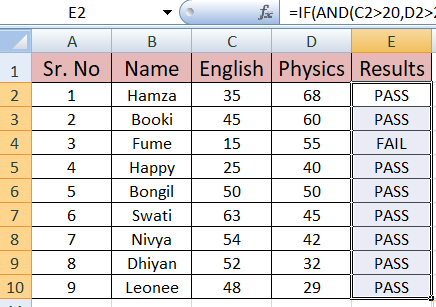
This is all about IF(AND) Function.
IF(OR) Function:
When you combine IF with OR, you can check multiple conditions at the same time.
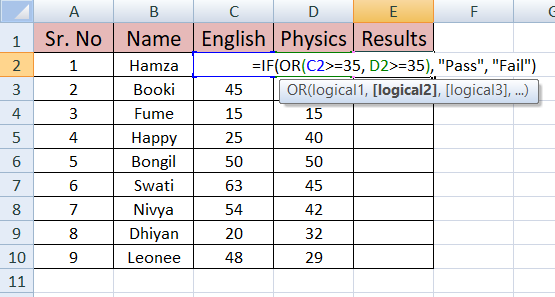
As you can see from the example above, a student passes if their score is greater than or equal to 35; otherwise, they fail.
The way it functions is that if either C2 or D2 is greater than 35, it passes; if both are less than 35, it fails.
According to my data table i choose =IF(OR(C2>=35, D2>=35), "Pass", and "Fail"; you are free to choose what you want as per your data.
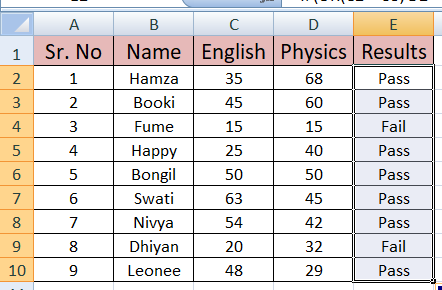
After that simply press Enter and drag it down to view the results as shown in the image below.
As you can see, Dhiyan received less than 35 in both subjects, meaning he failed. Happy, on the other hand, received less than 35 but 40 in one subject and 25 in English, meaning she passed because she received more than 35 in one subject.
Thus, it may be clear how the IF function works with OR.