What Is an Excel Formula?
From basics to power-user: the essential Excel formulas you should know for data, math, and analysis.
An Excel formula is an instruction you enter into a cell to perform a calculation or operation on data. It always starts with an equals sign (=).
Microsoft Excel is one of the most widely used programs for data management and analysis . It is utilized to store operational records, generate analytical reports, and gather business insights. We need Excel formulas to do basic calculations or data analysis.
Importance of excel formulas!!
- Save Huge Amount of Time
- Reduce Human Errors
- Update Automatically
- Required in Almost Every Job
- Make You Work Smart (Not Hard)
- Foundation for Advanced Excel
Basic formulas in excel
Learning the fundamental formulas is the first step to becoming expert with Excel. Type "=" to begin using any formula in an Excel sheet before applying it.
1.SUM ()
With the SUM function, values are added. Individual values, cell references, or ranges can be added.
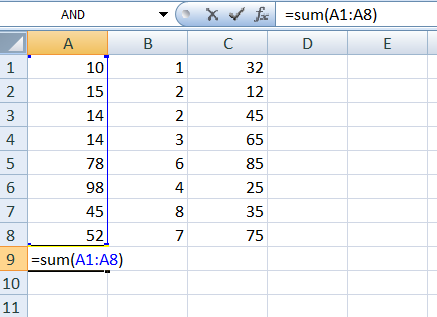
how to implement "SUM()" function : There are three different ways to implement SUM function in excel.
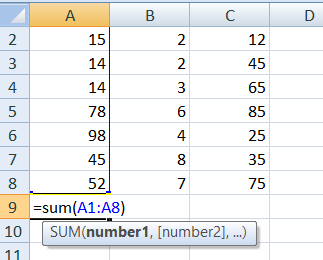
First step is to type =SUM(select cell what you want to calculate) as show in below image =SUM(A1:A8).
Example:
Second step is to to double click function icon in below image.
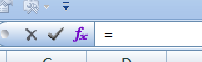
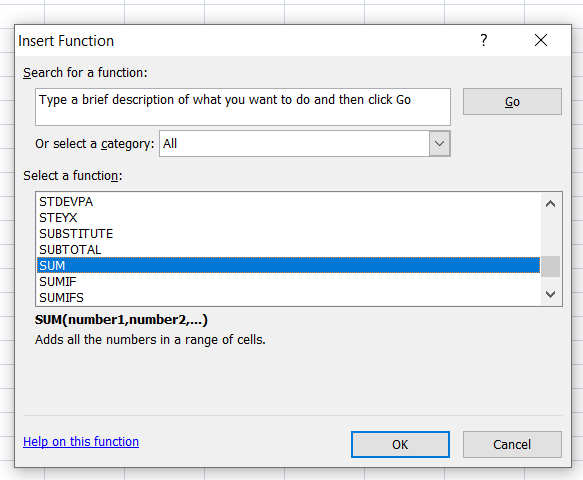
To pick the SUM function, click the function icon to open the dialog box below. Then, click "OK" to open another function parameters dialog box where you may enter the cell sum calculation you wish to perform.
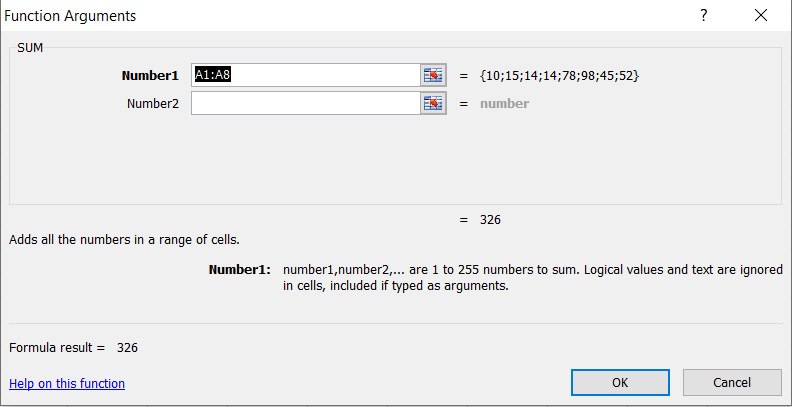
The third step is to manually enter the entire formula in an Excel cell, as shown in the image below:
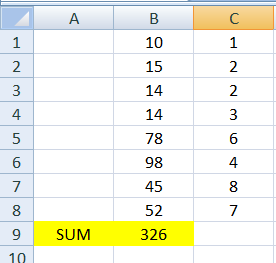
Additionally, by simply clicking "enter," the answer to the sum appears in each step as per below image.
2.MIN()
The smallest number in the given data is returned by the MIN function. Any kind of numeric data can have its smallest value returned using the MIN function.
How to implement "MIN()" function : There are three different ways to implement SUM function in excel.
First step is to type =MIN(select cell what you want to calculate) as show in below image =MIN(B1:B8).
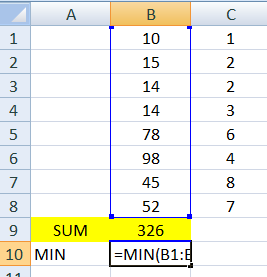
To pick the MIN function, click the function icon to open the dialog box below. Then, click "OK" to open another function parameters dialog box where you may enter the cell MIN calculation you wish to perform.
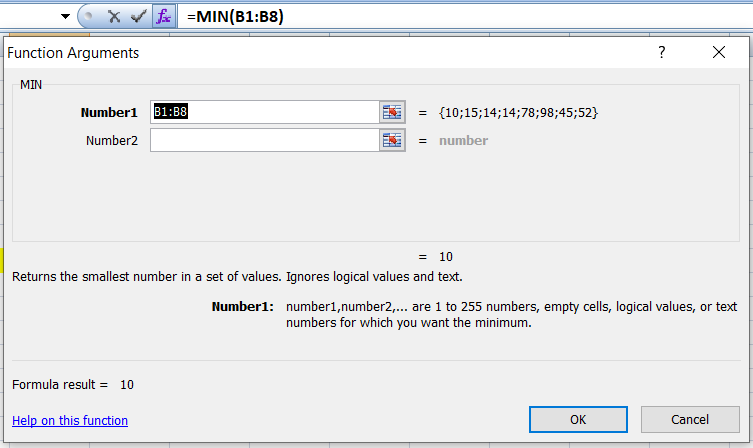
The third step is to manually enter the entire formula in an Excel cell, as shown in the image below:
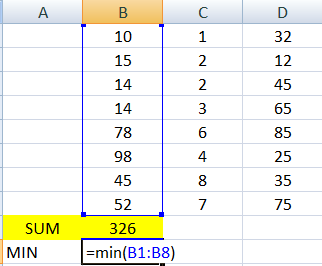
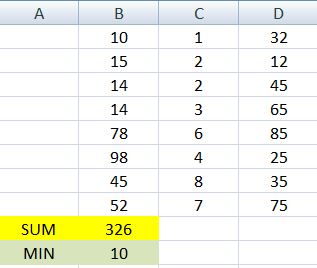
Additionally, by simply clicking "enter," the answer to the MIN appears in each step as per below image.
3.MAX()
The MAX function returns the largest numeric value in the data provided. The MAX function can be used to return the largest value from any type of numeric data.
How to implement "MAX()" function : There are three different ways to implement MAX function in excel.
First step is to type =MAX(select cell what you want to calculate) as show in below image =MAX(B1:B8).
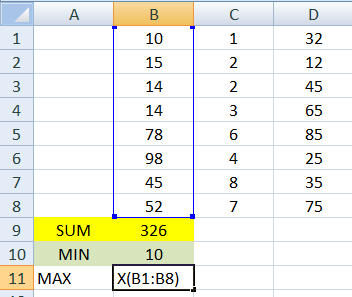
To pick the MAX function, click the function icon to open the dialog box below. Then, click "OK" to open another function parameters dialog box where you may enter the cell MAX calculation you wish to perform.
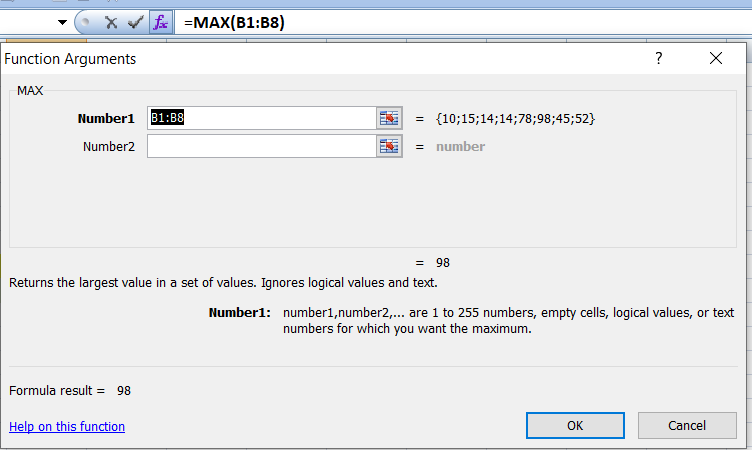
The third step is to manually enter the entire formula in an Excel cell, as shown in the image below:
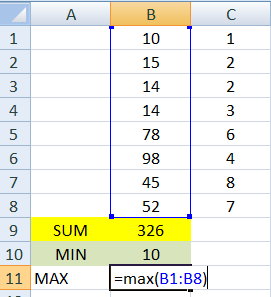
Additionally, by simply clicking "enter," the answer to the MIN appears in each step as per below image.
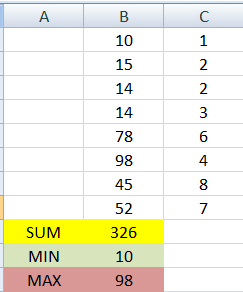
Use Average formula same as above by different steps.